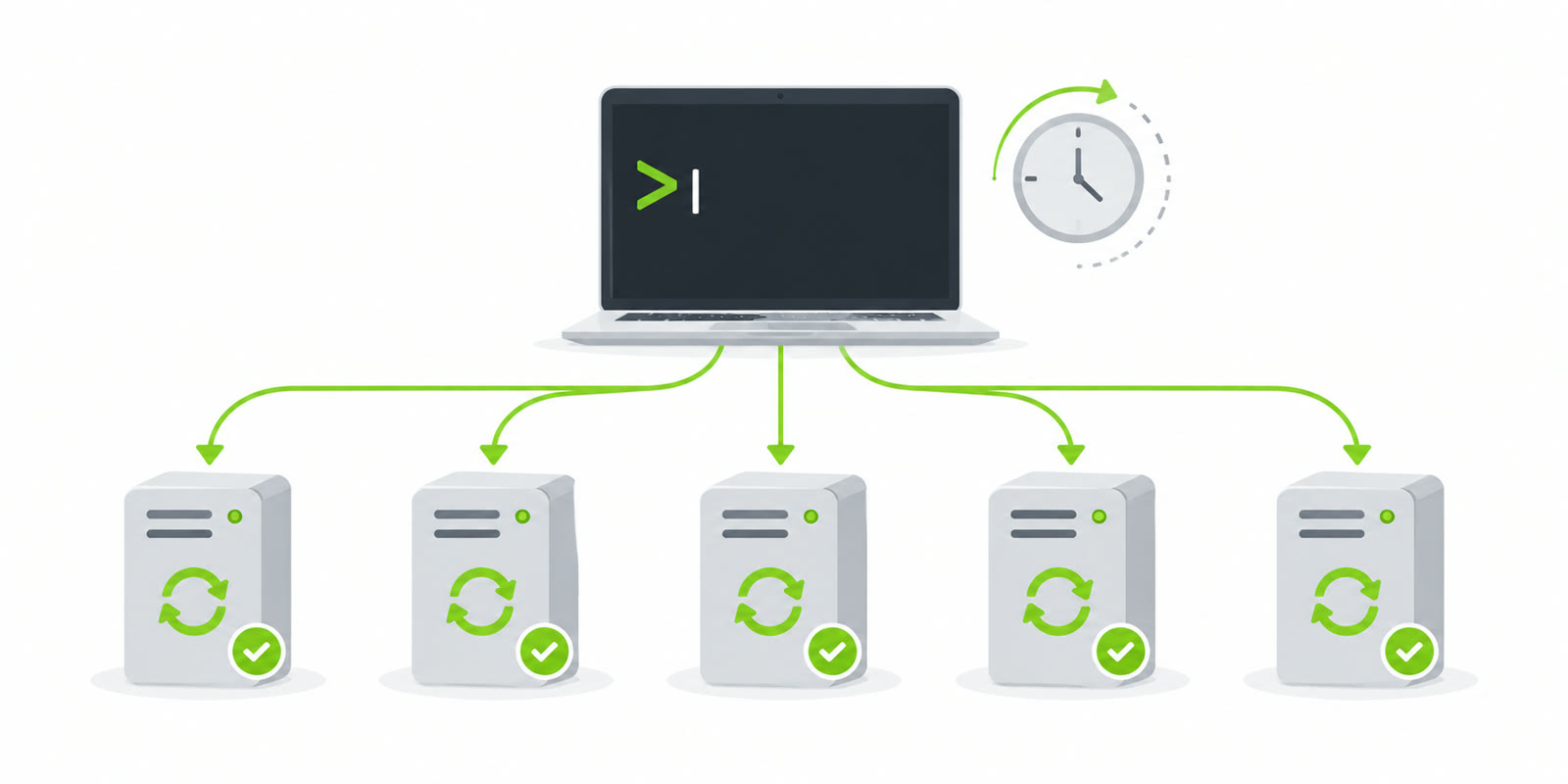
Managing Windows updates across multiple servers doesn’t have to be a manual, time-consuming process. With PowerShell and the PSWindowsUpdate module, you can automate the entire update process from a single session.
The Solution
This script creates scheduled tasks across multiple servers that will automatically install Windows updates and reboot when necessary:
# Create scheduled task on all servers that runs in 2 minutes
Invoke-Command -ComputerName $servers -ScriptBlock {
    $action = New-ScheduledTaskAction -Execute "PowerShell.exe" -Argument @"
-ExecutionPolicy Bypass -Command "
if (!(Get-Module -List PSWindowsUpdate)) {
    Install-PackageProvider -Name NuGet -Force
    Install-Module PSWindowsUpdate -Force
}
Import-Module PSWindowsUpdate
Install-WindowsUpdate -AcceptAll -AutoReboot | Out-File C:\PSWindowsUpdate.log
"
"@
    $trigger = New-ScheduledTaskTrigger -Once -At (Get-Date).AddSeconds(30)
    $principal = New-ScheduledTaskPrincipal -UserId "SYSTEM" -LogonType ServiceAccount -RunLevel Highest

    Register-ScheduledTask -TaskName "WindowsUpdateInstall" -Action $action -Trigger $trigger -Principal $principal -Force

    Write-Host "$env:COMPUTERNAME : Task created, updates starting in 2 minutes"
} -ThrottleLimit 50
How It Works
Scheduled Task Approach: Instead of running updates immediately, the script creates a scheduled task on each server. This allows your PowerShell session to complete quickly while updates run independently with proper system privileges.
Automatic Module Management: The script checks for the PSWindowsUpdate module and installs it if missing, ensuring compatibility across all servers.
Concurrent Execution: With -ThrottleLimit 50, up to 50 servers can be processed simultaneously for maximum efficiency.
Comprehensive Logging: All update activities are logged to C:\PSWindowsUpdate.log for troubleshooting and audit purposes.
Manual Execution
If you need to start the scheduled task manually later, you can trigger it across all servers with:
Invoke-Command -ComputerName $servers -ScriptBlock {Get-ScheduledTask windowsupdateinstall | Start-ScheduledTask}
This gives you full control over when the updates actually run, perfect for planned maintenance windows.
Group Policy Integration
For even easier bulk management, consider deploying the scheduled task via Group Policy. Create the task in your GPO and then use the manual execution command above to trigger updates across your entire environment when needed. This approach combines the convenience of centralized deployment with on-demand execution control.
Key Benefits
- Time Efficient: Update entire server farms with a single command
- Flexible Timing: Create tasks now, execute when convenient
- Scalable: Handle large environments with throttling
- Reliable: System account ensures proper update privileges
- Traceable: Complete logging for audit and troubleshooting
This approach provides the automation and control that modern IT environments demand, whether you’re handling Patch Tuesday or responding to critical security updates.
Happy updating!