The Goal
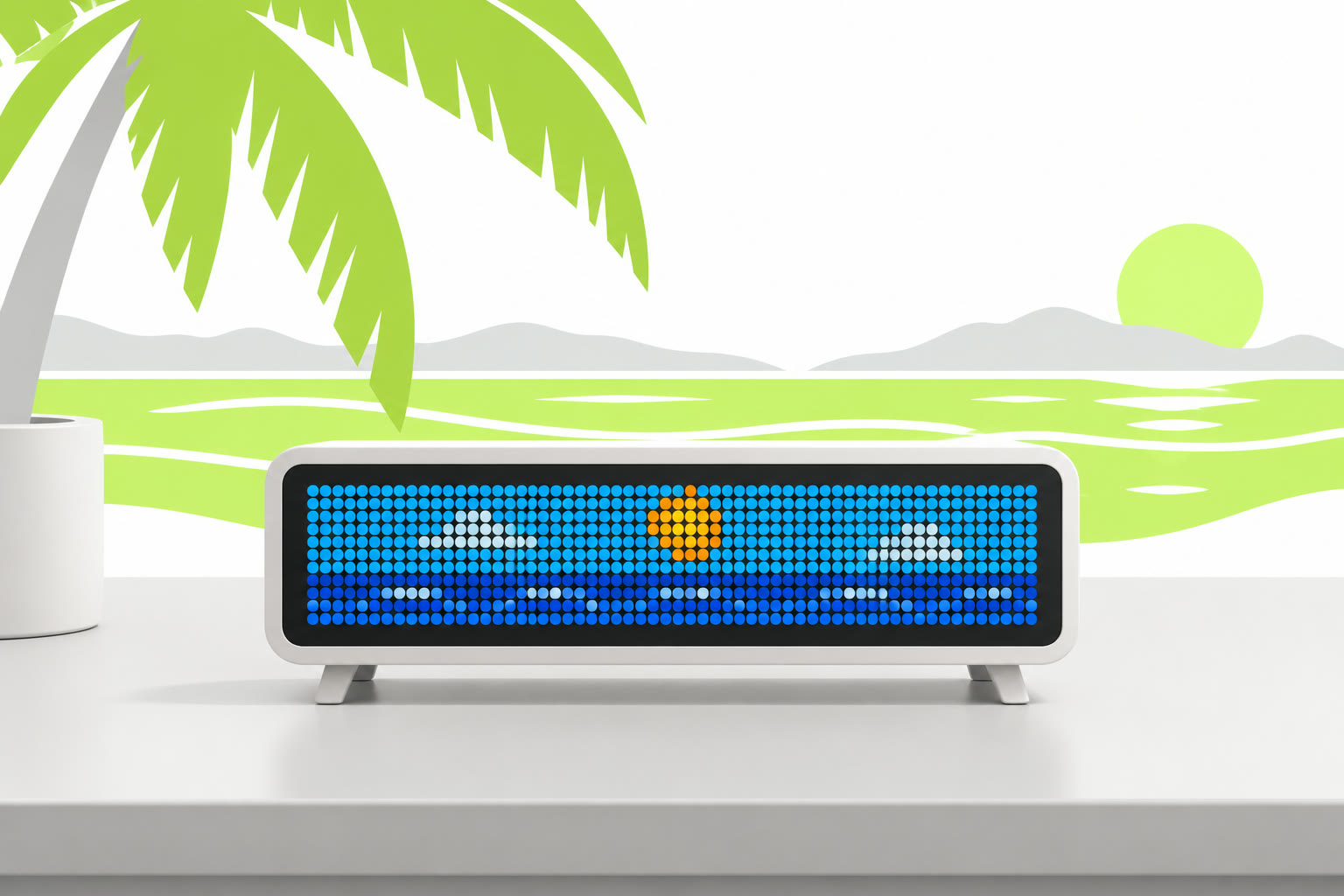
Our family is immigrating to Curaçao, and I wanted to see how many days were left at a glance. I had an Ulanzi TC001 pixel clock lying around, freshly flashed with AWTRIX 3. A 32×8 LED matrix that counts down to the beach. How hard can it be?
The Catch
AWTRIX 3 can store custom apps, but it can’t run any date logic on the device. A countdown means something else, like Home Assistant or a script, has to push a new value every second or minute over MQTT or HTTP. I don’t run home automation, and I didn’t want a PC on all the time just to feed a clock.
The fix: flash AWTRIX NG instead. NG runs small Berry scripts on the clock itself, and there’s even an official countdown recipe to start from.
Step 1: Flash AWTRIX NG
- Connect the TC001 with a USB data cable.
- Open the browser flasher in Chrome or Edge, choose Fresh install, then Connect.
- After about 15 seconds the clock opens an access point
awtrixng-xxxxxx. Join it, go tohttp://192.168.4.1and enter your 2.4 GHz Wi-Fi.
Fresh install wipes your AWTRIX 3 settings and icons. Also note the API is different: AWTRIX 3 uses /api/..., NG uses /api/v1/.... If an old AWTRIX 3 tutorial gives you a 404, that’s why.
Step 2: The Countdown App
The app is a Berry class with loop() for the logic and draw() for the pixels. The target date and time are settings (@config), so you can change them later in the web UI without touching code:
# @name    Immigration Countdown
# @config  target text   "Date"   default="YYYY-MM-DD"
# @config  hour   number "Hour"   default=8 min=0 max=23
# @config  offset number "UTC offset" default=1 min=-12 max=14
# @config  tint   color  "Text colour" default=#FFFFFF
loop() turns the seconds left into a fixed DD:HH:MM label, which fits nicely on 32 pixels:
  def loop()
    var now = epoch_ms()            # -1 until NTP has synced
    if self.target_s == nil || now < 0
      return
    end
    var left = self.target_s - now / 1000
    if left <= 0
      self.done = true
      return
    end
    var d = left / 86400
    var h = (left % 86400) / 3600
    var m = (left % 3600) / 60
    var dd = d < 10 ? "0" + str(d) : str(d)
    var hh = h < 10 ? "0" + str(h) : str(h)
    var mm = m < 10 ? "0" + str(m) : str(m)
    self.label = dd + ":" + hh + ":" + mm
  end
My first version had a palm tree icon, seconds, scrolling text and black digits. In the end, plain white and static won. Less is more on 256 pixels. The background was the built-in Pacifica ocean effect with a drizzle overlay.
Upload it under Scripts → Import, or straight over HTTP:
curl -X PUT http://<clock-ip>/api/v1/apps/script/ImmigrationCountdown \
  -H 'Content-Type: text/plain' --data-binary @ImmigrationCountdown.be
Check the reply. A script that doesn’t compile still installs and returns HTTP 200; only "error":null means it actually works.
Step 3: A Sun Instead of Waves
Then I wanted a sun floating by instead of the waves. Instead of editing the working app, I added a new app next to it and disabled (not deleted) the old one, so switching back is one click.
The sun is just a filled circle on a low parabola: 12 seconds across, 4 seconds off-screen:
  def draw()
    clear(rgb(0, 50, 140))            # blue sky
    var t = now_ms() % 16000
    if t < 12000
      var x = -4 + (width() + 8) * t / 12000
      var dx = x - width() / 2
      circle_fill(x, 2 + dx * dx / 80, 3, rgb(255, 150, 0))
    end
    text((width() - text_ink_width(self.label)) / 2, 6, self.label, self.tint)
  end
Switching apps is one call. Note that you have to send the complete state, every enabled and every disabled app:
curl -X PUT http://<clock-ip>/api/v1/apps/order \
  -H 'Content-Type: application/json' \
  -d '{"order":["ImmigrationSun"],"disabled":["ImmigrationCountdown"]}'
Step 4: Day and Night
Then the obvious next wish: a night with a moon. The final version (ImmigrationDayNight) runs a 24-second cycle: 12 seconds of blue sky with the sun, 12 seconds of black sky with a round yellow moon. The sky fades between the two over two seconds:
    var t = now_ms() % 24000
    var level
    if t < 12000
      level = t < 10000 ? 2000 : 12000 - t
    else
      level = t < 22000 ? 0 : t - 22000
    end
    var sky = rgb(0, 50 * level / 2000, 140 * level / 2000)
    clear(sky)
(The very first moon was a “half moon”: a pale circle with a black circle drawn over it. I asked for a round, yellow one instead.)
Step 5: Stars That Behave
At night, a few twinkling stars. This turned out to be the fiddliest part. My requirements, learned the hard way:
- stars must look random, not lined up in a row;
- stars must not touch each other;
- stars must not touch a digit horizontally or vertically (diagonal is fine).
The built-in TwinklingStars effect can’t guarantee any of that. So:
- A tiny pseudo-random generator, seeded with the cycle number, so the stars stay put during one night and move on the next.
- The width is split into bands with gaps between them, one star per band. That way two stars can never touch, whatever the random picks are.
- Before drawing the white digits, I draw the same text in the sky colour, shifted one pixel up, down, left and right. That erases any star that would touch a digit.
      var r = ((now_ms() / 24000) * 73 + 41) % 257
      pixel(0, r % 8, rgb(s1, s1, s1))
      r = (r * 73 + 41) % 257
      pixel(4 + r % 4, ((r / 4) % 2) * 7, rgb(s2, s2, s2))
      # ... same for the bands at 10, 16 and 22, plus column 31

      text(tx, 5, msg, sky)        # erase stars touching the digits
      text(tx - 1, 6, msg, sky)
      text(tx + 1, 6, msg, sky)
      text(tx, 7, msg, sky)
The generator only has 257 possible states, so I simply checked all of them in Python: no layout has touching stars. I also checked live frames from GET /api/v1/display/screen, which returns the actual 32×8 pixel buffer as JSON. Very handy for testing animations without staring at the clock.
Step 6: On at 07:00, Off at 23:00
Nobody needs a glowing countdown at 3 a.m. Turning the display off and on is one call:
# off (use true to switch it back on)
curl -X PATCH http://<clock-ip>/api/v1/display \
  -H 'Content-Type: application/json' \
  -d '{"power":false}'

# check
curl http://<clock-ip>/api/v1/display
Don’t use deep sleep for this. You can’t wake the clock from deep sleep over the API.
I scheduled it with a small Python script. My server runs on UTC, so the script decides based on Amsterdam time, and cron simply runs it at both possible UTC hours (0 5,6 * * * for the 07:00 switch-on). Summer and winter time are handled automatically:
from datetime import datetime
from zoneinfo import ZoneInfo

def desired_power(hhmm):
    return {"07:00": True, "23:00": False}.get(hhmm)

power = desired_power(datetime.now(ZoneInfo("Europe/Amsterdam")).strftime("%H:%M"))
if power is not None:
    # PATCH /api/v1/display {"power": power}, then GET it back and
    # raise if the state doesn't match, so a failure shows up.
    ...
The Bonus Bug: It Kept Dying
Every now and then the clock went completely dark. Not just the display: unreachable. I logged battery voltage every minute, and it was clear: the battery drained while USB was plugged in. It didn’t charge at all. A 3 A adapter instead of 2 A didn’t help. Replacing the USB-C cable did. After that, no more drops, and the battery stayed above 4.1 V.
Tip: AWTRIX NG has a Block navigation setting. With it on, a double click on the middle button no longer turns the matrix off by accident.
Three Takeaways
- If your clock has to calculate something, AWTRIX NG with on-device scripts beats pushing updates to AWTRIX 3 every second.
- Add new looks as a separate app and disable the old one. Going back is one toggle, not a debugging session.
- When a USB device randomly dies, log the battery voltage before you blame the firmware. Mine was a bad cable.
Full disclosure: my AI assistant wrote and live-tested most of the Berry code while I kept asking for “just one more” tweak. 😉
Happy counting down!