The Goal
I wanted to disable audio recording on one security camera. The RXCamView app could mute live playback, but that does not stop the recorder from saving audio. For that I needed the recorder’s web interface.
Small problem: I did not know its IP address. I had only my Android phone on the same Wi-Fi network, while Hermes was running on a server somewhere else.
That phone was already connected to my Tailscale network. Could Hermes use it as a remote nmap probe?
Yes. And it worked much better than I expected.
The Catch
Tailscale makes the phone reachable, but it does not automatically provide a shell or route the phone’s local Wi-Fi network to other Tailscale nodes. The Android Tailscale app is not a magic remote-control button.
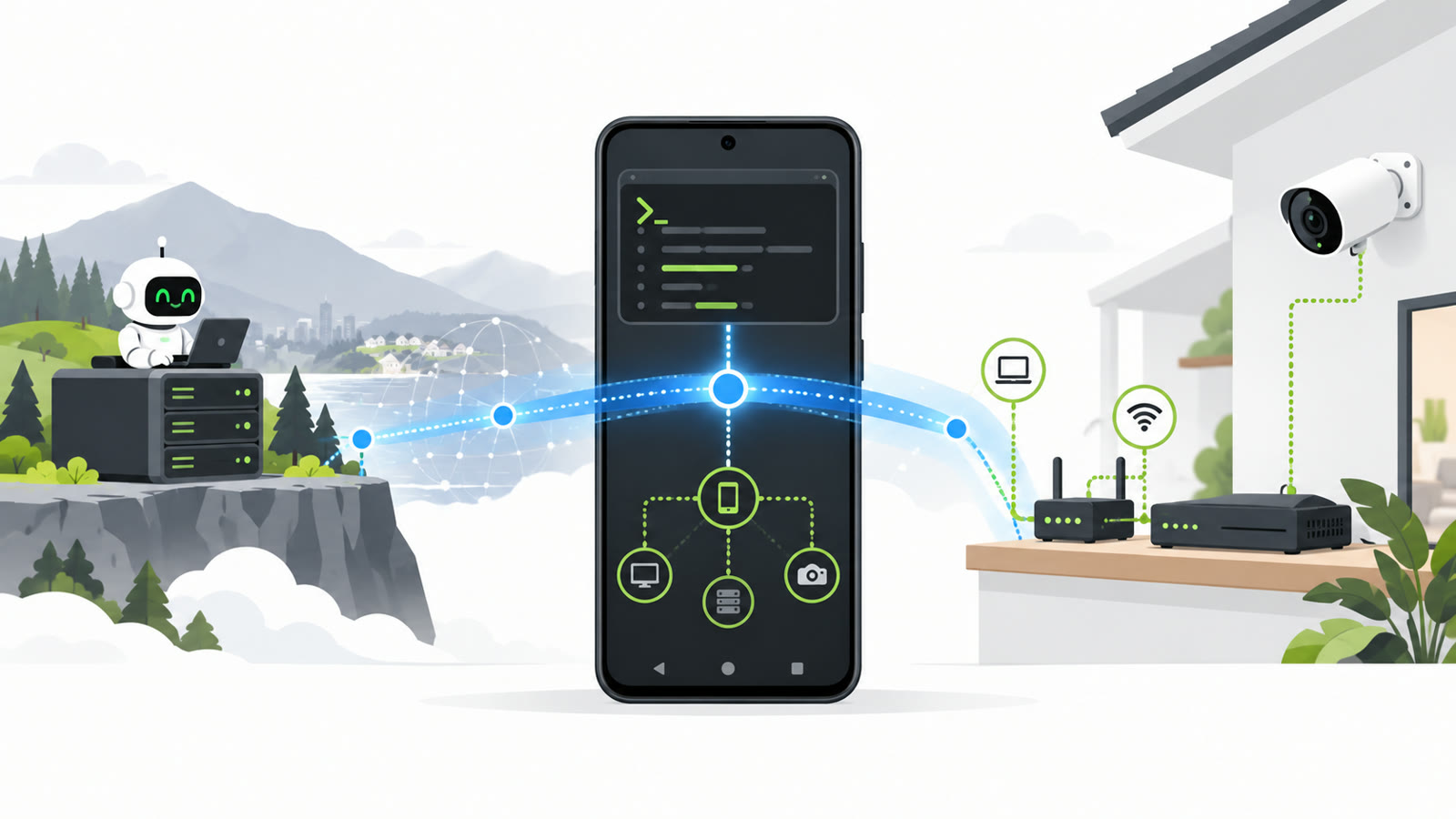
The missing piece was Termux: a small Linux environment on Android. By running OpenSSH and nmap inside Termux, the phone became a temporary jump host:
Hermes → server → Tailscale → Android/Termux → local Wi-Fi → camera recorder
The important bit is that nmap ran on the phone. Tailscale only carried the SSH connection from the server to Termux.
Step 1: Install the Tools on Android
I installed Termux from F-Droid and ran:
pkg update
pkg install openssh nmap
Termux’s SSH server listens on port 8022, not the normal port 22. I added a dedicated public key from my server and started it:
mkdir -p ~/.ssh
chmod 700 ~/.ssh
printf '%s\n' 'ssh-ed25519 AAAA... server-to-phone' >> ~/.ssh/authorized_keys
chmod 600 ~/.ssh/authorized_keys
sshd
whoami gives the Android-generated Termux username, something like u0_a123. You need that exact name for SSH.
Step 2: Let Hermes Connect Through Tailscale
Hermes checked tailscale status on my server, found the phone online and confirmed that port 8022 was open. The connection then looked like this:
ssh -i ~/.ssh/id_ed25519_phone \
  -p 8022 \
  u0_a123@my-phone
No password went into Discord, and the private key never left the server.
At this point Hermes had a shell on my phone over Tailscale. That sounds more dramatic than it is: it was an unprivileged Termux shell, not Android root access.
Step 3: Find the Phone’s Wi-Fi Address
This was the only annoying Android-specific part. On a normal Linux machine I would use ip route, but modern Android blocks an unprivileged app from reading the relevant netlink and /proc information. Both ip route and Nmap’s interface list came back empty or with Permission denied.
Python was already installed in Termux, so a UDP socket solved it without sending any data:
python -c 'import socket; s=socket.socket(socket.AF_INET,socket.SOCK_DGRAM); s.connect(("8.8.8.8",80)); print(s.getsockname()[0])'
That returned the phone’s Wi-Fi address. From there the local /24 subnet was obvious.
Step 4: Scan from the Phone
Because Termux is unprivileged, I used a TCP connect scan (-sT) instead of a raw SYN scan. I also limited it to ports commonly used by recorders, cameras and web interfaces:
nmap -sT -Pn -T4 --max-retries 1 \
  --open \
  -p 80,81,85,88,443,554,8000,8080,9000,34567,37777 \
  192.168.50.0/24
The scan found two interesting devices. One exposed HTTP, HTTPS and RTSP on port 554: very likely the recorder. The other web interface turned out to be my Philips Hue Bridge.
A small version scan confirmed the candidate:
nmap -sT -Pn -sV --version-light \
  -p 80,443,554,8080,9000 \
  192.168.50.123
The addresses above are examples. Use the subnet and recorder address you actually found.
Step 5: Disable Audio for One Camera
I opened the recorder’s local web address directly on the Android phone and logged in. The web interface worked surprisingly well in a mobile browser, although everything was tiny.
The path on this recorder was:
Remote Setting
→ Common Settings
→ Video Parameters
→ select the camera channel
Under Audio I set Input Volume to 0 and saved it. Under Record I disabled audio recording for that channel, so the recorder no longer stores an audio track for it. Existing recordings keep their original audio; this only affects new recordings.
That was the original job done. But the useful discovery was bigger: Hermes can now temporarily use my Android phone as eyes and hands inside whatever LAN the phone is connected to.
Clean Up Afterwards
An SSH server on a phone should not run forever just because one scan needed it. Stop it when finished:
pkill sshd
For a one-off connection, also remove the dedicated key from ~/.ssh/authorized_keys. If you keep this setup, use a dedicated key, key-only authentication and Android’s battery settings to decide whether Termux may keep running in the background.
Also: only scan networks and devices you own or have explicit permission to test.
Why This Is So Useful
The phone does not need to be a permanent Tailscale subnet router. It does not need root. I did not need to install a network-scanner app and manually copy every result into chat.
Instead, Hermes handled the remote diagnostics while I only performed the Android steps that actually required touching the phone. Screenshots from the web interface filled in the final UI details.
That combination is gold:
- Tailscale provides the private path to the phone.
- Termux provides SSH and normal Linux tools on Android.
- Hermes runs the investigation, interprets the output and guides the last clicks.
Three Takeaways
- Tailscale makes an Android phone reachable, but Termux turns it into a useful remote Linux endpoint.
- On unrooted Android, use
nmap -sT; raw scans and interface discovery may be blocked. - A phone already inside the target Wi-Fi network can be the perfect temporary LAN probe—no laptop or permanent subnet router required.
Full disclosure: Hermes performed the remote checks, installed Nmap through Termux, ran the scan and helped me navigate the recorder interface. I mostly tapped buttons and sent screenshots. 😉
Happy remote scanning!